
Amazon Browse Nodes: What They Are and How to Choose the Right One
Updated 8 min read StaffCloud
Short answer: an Amazon browse node is a numbered category in Amazon's catalogue tree, such as Toys & Games › Stuffed Animals & Plush Toys › Teddy Bears. It decides where your product appears when shoppers browse and filter. It also decides which category your Best Sellers Rank is counted in. Choose the most specific (leaf) node that truly describes the product, and set it in the
recommended_browse_nodesfield.
Picking a category looks like a one-minute job when you create a listing. It is also one of the most common reasons a good product goes unseen. A product filed under a broad node like Soft Toys competes with everything in that aisle and misses shoppers who drilled down to Teddy Bears. A product in the wrong node can also drop out of the filters shoppers actually use. This guide covers what browse nodes are, how they differ from product types, how to find the right one, and what changed in 2025–2026.
What is an Amazon browse node?
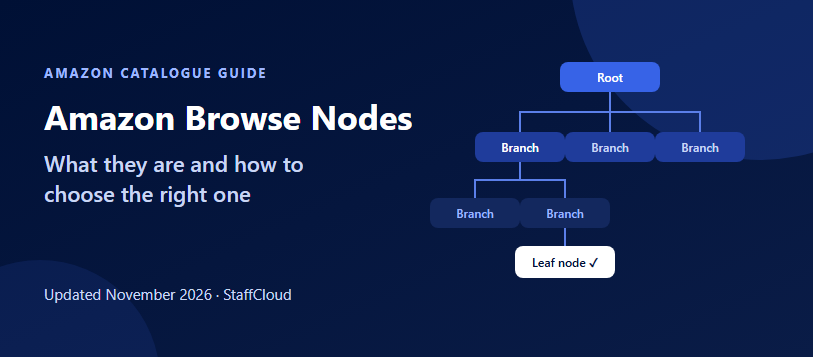
Amazon organises its catalogue as a tree of categories, and each category in that tree is a browse node with its own numeric ID. When a shopper clicks Home & Kitchen, then Kitchen & Dining, then Coffee, Tea & Espresso, they are walking down that tree from one node to the next. Amazon's own developer documentation describes the browse node field as indicating "where the product will be placed on the Amazon website".
A few things are worth knowing from the start:
- Browse nodes differ by marketplace. The tree on Amazon.com is not the same as on Amazon.co.uk or Amazon.de, and a node ID from one marketplace is not valid on another.
- One product can sit in more than one node. Amazon's APIs return a list of browse nodes for an item, not a single one. A coffee grinder can appear under both coffee equipment and small kitchen appliances.
- The tree changes. Amazon reorganises categories over time. A node that was valid when you listed can later be retired, and submitting it again then fails as invalid.
Root, branch and leaf nodes
Every path through the tree runs from broad to narrow:
| Node type | What it is | Example |
| Root node | The top-level department, with the most products under it | Toys & Games |
| Branch node | Any node that has child categories beneath it | Stuffed Animals & Plush Toys |
| Leaf node | The most specific category, with no children | Teddy Bears |
| Parent / ancestor | Any node above the current one in the path | Toys & Games is an ancestor of Teddy Bears |
| Child | A node directly beneath the current one | Teddy Bears is a child of Stuffed Animals |
The general rule is to assign the deepest leaf node that accurately describes the product. A leaf node puts you in front of shoppers who have already narrowed their search, and it is the node most category filters are built on.
Browse node vs product type
Sellers often mix up these two, and Amazon treats them as separate settings:
| Product type | Browse node | |
| What it controls | Which attributes the listing must and can have (the schema) | Where the product appears in the category tree |
| Example | COFFEE_MAKER | Home & Kitchen › … › Coffee Makers › Drip Coffee Machines |
| Where you see it | Chosen first when you create a listing; drives the form or template | The recommended_browse_nodes attribute inside that form |
| If it's wrong | Missing or irrelevant fields, failed submissions | Product shows in the wrong aisle, misses filters, wrong BSR category |
In Amazon's Selling Partner API, the browse node is literally one attribute inside the product type's definition. Choose the product type first, then the most precise browse node available for it.
Why the right node matters
- Discoverability. Amazon states that omitting a browse node, or choosing a wrong one, can make a product harder to find. Shoppers who browse by category or narrow results with department filters only reach products filed under that category.
- Category filters. Many left-hand filters, such as size, material or compatibility, are tied to specific categories. In the wrong node, those filters may not apply to your product at all.
- Best Sellers Rank. BSR is calculated per category. The same sales volume can rank you #40 in a precise leaf node and #40,000 in a crowded broad one. That affects how the product looks to shoppers and how it appears in category bestseller lists.
- Competition. A precise node usually means fewer, more relevant competitors. Before you commit, check how many products sit in the node and how strong the top sellers are.
How to find the right browse node
1. Start from the product, not the keyword
Write down what the item is, who it's for and how a shopper would navigate to it. A node should describe the product honestly. Filing a product somewhere it doesn't belong, just because that node is less competitive, risks Amazon moving it and confuses shoppers.
2. Search the category in Seller Central
When you add a product in Seller Central, the category search shows full browse paths, for example Toys & Games › Stuffed Animals & Plush Toys › Teddy Bears. Amazon's documentation confirms these paths match the browse node values the listing accepts. Drill down until there are no more sub-categories. That is your leaf.
3. Check the Browse Tree Guide
Amazon publishes Browse Tree Guides (BTGs): downloadable spreadsheets, one per marketplace and category, listing every node ID with its full path. Search "Browse Tree Guide" in Seller Central help to find the current files for your marketplace. BTGs are the most reliable way to look up a node ID when you are working in a spreadsheet template.
4. Look at how top competitors are categorised
Open the detail pages of the best-selling comparable products. The breadcrumb at the top of the page, and the categories listed next to their Best Sellers Rank, show where Amazon places them. If the leaders all sit in one leaf node, that is strong evidence it is the right one.
5. For developers: use the Product Type Definitions API
If you list through the Selling Partner API, the Product Type Definitions API returns the current schema for a product type, including the allowed recommended_browse_nodes values and their category paths. This is the programmatic version of the BTG, and it is always current.
How to set or change a browse node in 2026
The field you need is recommended_browse_nodes. Amazon's current schemas require at least one value, set per marketplace. Note the word recommended: you are telling Amazon where the product belongs, and Amazon makes the final placement.
- In Seller Central: edit the listing, pick the category path in the product's details, and save. This route is unaffected by Amazon's 2025 feed changes.
- In a spreadsheet template: enter the node ID (from the BTG) in the recommended browse nodes column of the category template, then upload it in Seller Central.
- Through the API: Amazon retired XML and flat-file listings feeds in the Feeds API from 31 March 2025. Integrations now use the Listings Items API or the
JSON_LISTINGS_FEED, and the browse node goes in the JSON payload. The JSON schemas are stricter than the old XML ones, so a node that "worked" in an old feed may now be rejected.
If you use an affiliate or price-comparison tool that reads browse nodes, note that Amazon replaced the Product Advertising API 5.0 with the Creators API in spring 2026. The new API still returns each item's browse nodes, their ancestors and the sales rank within each node.
Fixing a product in the wrong category
Sometimes a listing ends up in the wrong node even though you set the right one, often after another seller or a catalogue update changes the ASIN's data. To fix it:
- Confirm what Amazon currently shows. Check the breadcrumb and BSR categories on the live detail page. Sellers can also check the Category Listings Report, which lists the category data Amazon holds for each of your SKUs.
- Re-submit the correct node by editing the listing or re-uploading the template with the correct
recommended_browse_nodesvalue. - If it reverts or won't update, open a case with Selling Partner Support and ask for a category or browse node change. Include the ASIN, SKU, marketplace, the current path, the correct path and node ID, and a sentence on why it fits (for example, "this is a teddy bear, not a puppet"). Packaging photos or a manufacturer spec help.
- Vendors (Vendor Central) usually request category corrections through a Vendor Central support case rather than editing the node directly.
Common mistakes
- Stopping at a branch node. "Kitchen & Dining" is not a category a shopper filters by. Keep drilling down to a leaf.
- Using a node from another marketplace. IDs are marketplace-specific. Copying a US node ID into a UK template typically produces an invalid browse node error.
- Reusing an old node ID. Download a fresh BTG before a big catalogue upload. Retired nodes cause failed submissions.
- Picking a node for low competition alone. If the product doesn't belong there, shoppers bounce, conversion falls and Amazon may re-classify it anyway.
- Ignoring the product type. The right node on the wrong product type still produces a listing with the wrong attributes. Fix the product type first.
Frequently asked questions
How do I find the browse node ID of an existing Amazon product?
On the product page, the breadcrumb shows the category path. Match that path in the Browse Tree Guide for the marketplace to get the node ID. Developers can read the IDs directly from the Selling Partner API or the Creators API.
Can a product have more than one browse node?
Yes. The recommended_browse_nodes attribute accepts a list, and Amazon can place one product in several nodes. Most listings should still have one clearly correct primary leaf node.
Does the browse node affect Best Sellers Rank?
Yes. BSR is calculated within each category, so the node you are placed in decides which ranking you appear in.
Why was my product moved to a different category?
Amazon makes the final placement and may change it when catalogue data changes or the product looks like a better fit elsewhere. Re-submit the correct node. If it doesn't stick, open a case with Selling Partner Support, including evidence.
Is the browse node the same as the product type?
No. The product type decides which attributes the listing has. The browse node decides where the product appears in Amazon's category tree.
How StaffCloud helps
Our catalogue teams add and update products for Seller Central and Vendor Central accounts and check that each one sits in the right browse node. That includes mapping new products to the right leaf node, correcting ASINs that drift into the wrong category, and keeping templates in line with Amazon's current schemas. See our browse node and attribute optimisation service and product listing optimisation, or tell us about your catalogue.
Related services
More articles in Amazon
-
 11 June 2024
How to map product categories in the Amazon VSSC Template to enhance your sales?
As an Amazon Vendor managing a diverse product portfolio, accurate categorization is crucial for maximizing visibility a
-
 5 July 2024
How to set up Product Variations on Amazon Seller Central?
Ever get confused by Amazon product variations? You're not alone! These can be a powerful tool to boost your sales, but
-
 10 April 2024
How to Merge Duplicate 3rd Party Amazon Listing of Your Product?
Are you a seller on Amazon facing the issue of duplicate ASIN listings created by third-party sellers? Worry not, as res