

How to Do Invoicing on SPS Commerce: A Step-by-Step Guide
Updated 8 min read StaffCloud
Short answer: in SPS Commerce, an invoice is created from the retailer's purchase order, once the shipment has been sent. Open Fulfillment › Transactions, find the order and check its shipment is complete. Click New under Billing in the order's workflow, then choose Quick Entry or Full Form Entry. Enter the invoice number from your accounting system plus the shipping details, run the error check, then send. SPS converts it into the retailer's EDI 810 invoice.
If you sell to retailers such as Target or Dollar Tree, there's a good chance their orders reach you through SPS Commerce. Getting paid then depends on one document: the invoice. It has to match the purchase order and the shipment, carry the right reference numbers, and arrive in the right order. An invoice that's rejected or doesn't add up means paying late, paying short, or not paying at all. This guide walks through invoicing an order in SPS Fulfillment, explains every field on the quick-entry form, and covers what to do when a retailer rejects an invoice.
What is SPS Commerce?
SPS Commerce is a cloud EDI (electronic data interchange) network. It sits between retailers and their suppliers and translates each retailer's purchase orders, ship notices and invoices into a format both sides can use. Suppliers without their own EDI system work in SPS's web application, Fulfillment, where retailer documents appear as forms. Larger suppliers usually connect SPS to their ERP or accounting system so documents flow automatically.
If you've searched "SPS full form": the company began in 1987 as St. Paul Software and took the name SPS Commerce in 2001. In supplier and accounts teams, "SPS billing" usually means invoicing retailers through SPS Commerce, which is what this guide covers.
The EDI documents behind an invoice
Every SPS form corresponds to a numbered EDI document. Knowing the numbers helps when a retailer's compliance guide or rejection message refers to them:
| EDI document | Name | Who sends it | What it does |
| 850 | Purchase Order | Retailer | The order: items, quantities, prices, ship-to and dates |
| 855 | PO Acknowledgement | Supplier | Confirms, changes or rejects order lines (where the retailer requires it) |
| 856 | Advance Ship Notice (ASN) | Supplier | Tells the retailer what shipped, how it's packed and how it's travelling |
| 810 | Invoice | Supplier | Bills the retailer for what was shipped |
| 997 | Functional Acknowledgement | Receiver | Confirms a document was received (not that it was accepted) |
The usual sequence is 850 → (855) → 856 → 810. The invoice comes last, and the retailer checks it against both the order and the ship notice.
Before you invoice: three checks
- The shipment has been sent. In the order's workflow, the Shipment step should show a completed ship notice. Many retailers expect the ASN before the invoice, and some reject an invoice that arrives before the order's ship date.
- Your own invoice exists. Most suppliers raise the invoice in their accounting system first, such as Xero, QuickBooks or Sage, so the same invoice number appears in both places. (See our guide to creating an invoice in Xero.)
- Quantities and prices match. Invoice what actually shipped, at the price on the PO, unless the retailer has agreed a change.
Step by step: invoicing an order in SPS Fulfillment
The screenshots below are from the SPS Fulfillment web application. Your screens may differ slightly depending on the retailer and your account's settings.
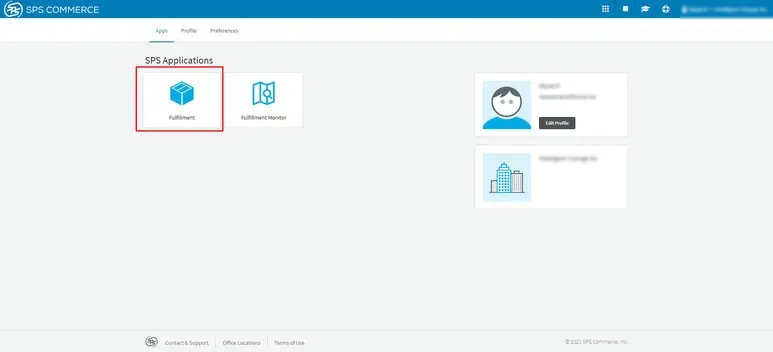
1. Open Fulfillment
After logging in to SPS Commerce, choose the Fulfillment application from SPS Applications.
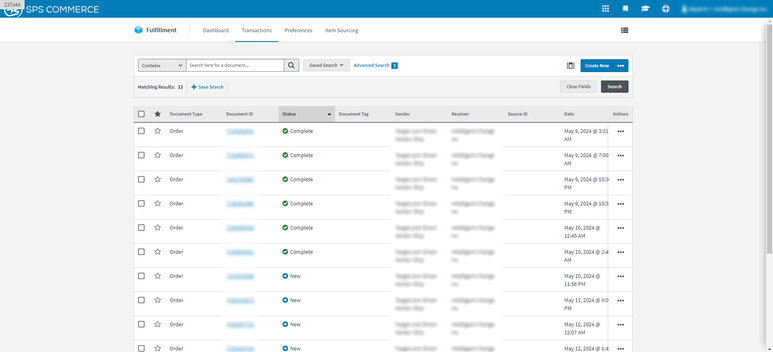
2. Go to Transactions
Click Transactions. Every document exchanged with your trading partners is listed here, with its type, status, sender, receiver and date.
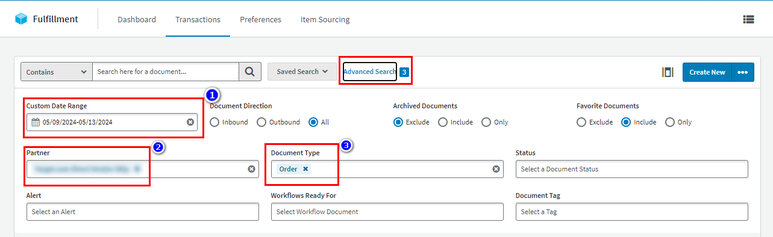
3. Find the order with Advanced Search
Click Advanced Search to filter the list. Set a Custom Date Range for when the order arrived, choose the retailer under Partner, and set Document Type to Order.
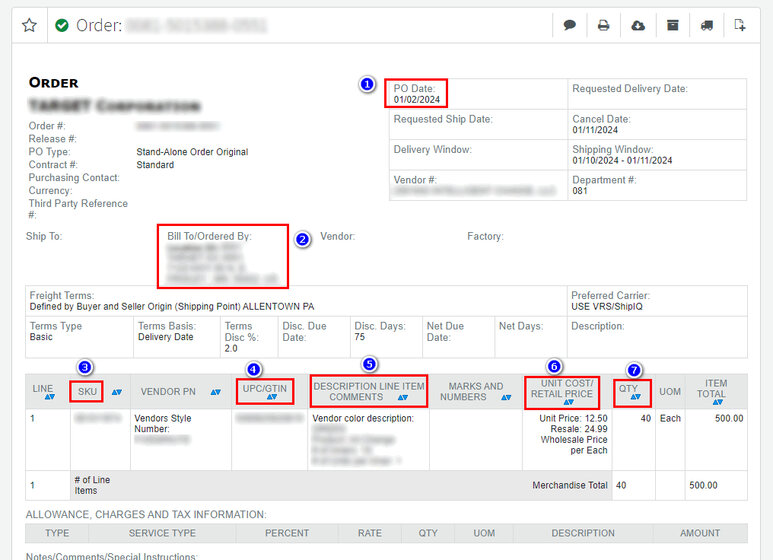
4. Check the order details
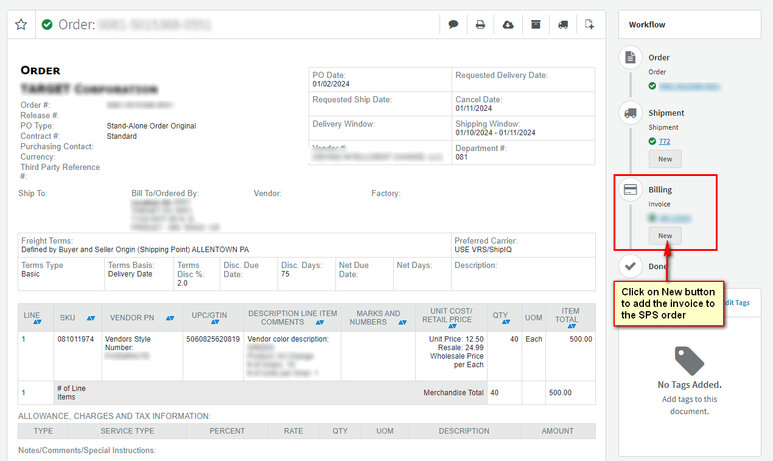
Open the order. The fields you'll need for your own invoice are all here: PO date, bill-to party, SKU, UPC/GTIN, item description, unit cost and quantity. If you raise the invoice in your accounting system, create it now from these details.
5. Start the invoice from the Billing step
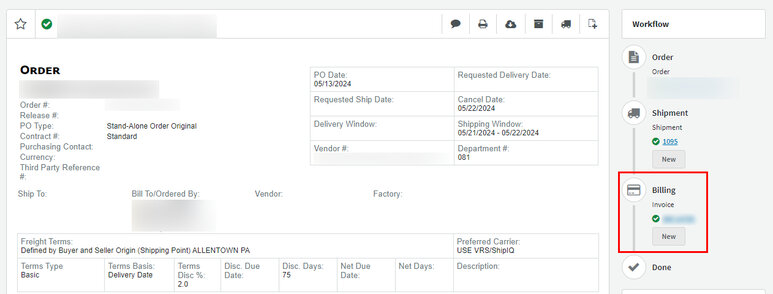
The Workflow panel on the right shows the order's progress: Order, Shipment, Billing and Done. Confirm the shipment step is complete, then click New under Billing.
6. Choose how to create it
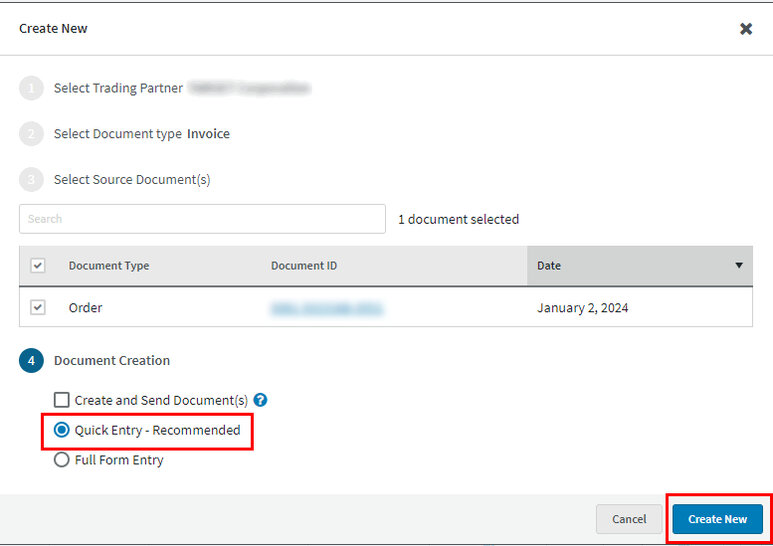
The Create New window pre-selects the trading partner, the document type (Invoice) and the source order. Choose a creation method and click Create New:
- Quick Entry – Recommended: shows only the fields you must fill. Everything else is carried over from the order and shipment.
- Full Form Entry: opens the complete invoice, typically split into header, item and summary sections. Use it when you need to change line items, add allowances or charges, or are still learning a retailer's requirements.
- Create and Send Document(s): creates and sends in one step. It's only suitable when your account already fills every required field automatically.
7. Enter the invoice number
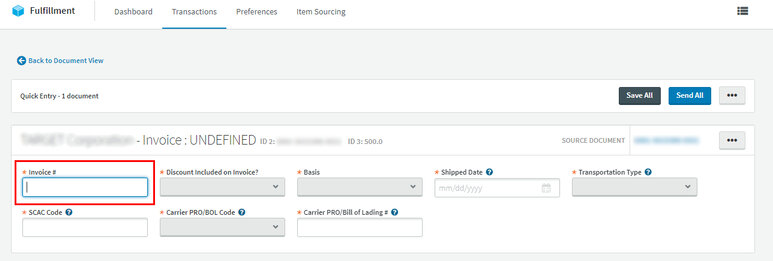
In Quick Entry, type your invoice number in Invoice #. Use exactly the number from your accounting system, so remittances can be matched later.
8. Complete the remaining fields, check and send
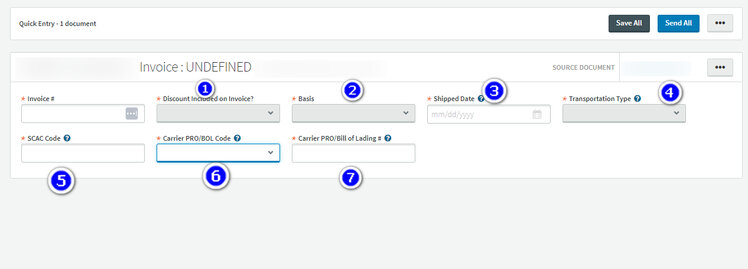
Fill in the other required fields (explained in the next section), run the error check, and click Send All. Use Save All if you need to come back to it.
9. Confirm it's linked to the order
Back on the order, the Billing step now shows the invoice with a green tick. SPS says a sent invoice can take up to 24 hours to show as received by the retailer.
The Quick Entry invoice fields explained
| Field | What to enter |
| Invoice # | Your invoice number, matching your accounting system |
| Discount Included on Invoice? | Whether the PO's payment-terms discount (for example, 2% if paid early) applies to this invoice |
| Basis | The date payment terms run from, usually Delivery Date or Invoice Date. Follow the terms on the PO |
| Shipped Date | The date the goods actually left, matching the ship notice |
| Transportation Type | How the goods travelled, for example parcel or motor freight |
| SCAC Code | The carrier's Standard Carrier Alpha Code, the 2–4 letter code identifying the carrier |
| Carrier PRO/BOL Code | Whether the reference you're entering is a carrier PRO (tracking) number or a bill of lading number |
| Carrier PRO/Bill of Lading # | The tracking or bill of lading number itself |
Required fields vary by retailer. One retailer's SPS guide notes that saving default values for recurring fields cuts the number you type on each invoice considerably. Look for an "auto sourcing" or defaults option in your account.
When an invoice is rejected
SPS separates invoice problems into two groups:
- Error: the problem is inside SPS. Usually a required field is blank or a value is invalid. Open the invoice, fix the flagged fields and send again.
- Not Accepted: the retailer's system received the invoice and rejected it. Many retailers send a rejection explaining why. Read it before correcting anything.
The causes SPS lists most often:
- Invoicing before the ship date. Some retailers reject invoices that arrive early.
- A store number that doesn't match the PO.
- Blank required fields, often fields the retailer added to its requirements.
- Special or invisible characters pasted in from spreadsheets or web pages.
- Totals that don't add up, where line items don't sum to the invoice total because of rounding or data-mapping problems. SPS warns that in this case the retailer is likely to pay the lower of the two amounts.
SPS recommends running Check for Errors before every send. If an invoice still hasn't shown as received after 24 hours, check the retailer's response before raising a support ticket.
How to avoid short payments and chargebacks
An accepted invoice can still be paid short. Retailers compare it with the PO and the ASN, and deduct the difference or charge a compliance fee. The usual triggers:
- Price differences between the invoice and the PO
- Quantity differences between the invoice and what the ASN says shipped
- Missing or wrong allowances and charges, such as freight or promotional allowances
- Wrong item identifiers, where the UPC or SKU doesn't match the order line
- Invoice before ASN: send the ship notice first, every time
Each retailer publishes its own rules and tolerances in its vendor or EDI compliance guide. Get the current version from the retailer or SPS and keep it to hand. When a deduction appears on a remittance, these documents are what you dispute with. Keep the PO, ASN, invoice and proof of delivery together for every order.
Frequently asked questions
What does SPS stand for in SPS Commerce?
The name comes from St. Paul Software, the company founded in 1987 that renamed itself SPS Commerce in 2001.
What is an EDI 810?
The EDI 810 is the electronic invoice. In SPS Fulfillment you fill in an invoice form and SPS sends it to the retailer as an 810.
Do I have to send the ASN before the invoice?
For most retailers, yes. They match the invoice against the ship notice, and invoices sent before the shipment or the ship date can be rejected or lead to deductions.
What's the difference between Quick Entry and Full Form Entry?
Quick Entry shows only the required fields and carries the rest over from the order and shipment. Full Form Entry opens the whole invoice so you can edit line items, allowances and charges.
Why is my SPS invoice "Not Accepted"?
The retailer's system rejected it, often because of an invalid store number, a missing required field, early invoicing or totals that don't add up. Check the retailer's rejection message, correct the invoice and resend.
How StaffCloud helps
Our teams handle invoicing on SPS Commerce and in accounting systems such as Xero for suppliers who sell to major retailers. That includes raising invoices against shipped orders, clearing rejections and reconciling remittances against deductions. See our retail systems and EDI, dropship and EDI operations and invoice, PO and remittance processing services, or email support@staffcloud.net.
Related services
- eCommerce Order & Fulfillment Operations From purchase order to tracking number, across every channel you sell on. Explore service
- eCommerce Retail Systems & EDI Integrations Retailer portals, EDI, ERP and the disputes that come out of them. Explore service
- eCommerce Multi-Marketplace Management Services Walmart, eBay, Wayfair, Target and the channel tools that keep them in sync. Explore service
More articles in eCommerce Platforms
-
 27 June 2024
How to submit POD Dispute on ‘The Home Depot’?
Home Depot, a prominent retailer in home improvement, provides an extensive array of products and services catering to b
-
 26 June 2024
How to Dispute Deductions On Lowe’s?
Return to Manufacturer: RTV refers to items Returned to Vendor, categorized as either Defective or Non-Defective. Vendor
-
 19 June 2024
How to process Order Fulfillment on Manifest.eco?
Manifest.eco is a sustainable 3PL company for e-commerce logistics. They intend to be a top leader in terms of environme