

Simplify Data Management with Google Sheets: Exploring the Versatility of the Query Function
3 min read StaffCloud
Google Sheets are more famous among users nowadays for information management like data reporting, organizing, and analyzing. There are so many features and functions in Google Sheets that are very useful to reduce manual work while creating reports. The Query function is one of the most powerful functions in Google Sheets. Being a back-office support company, PHP Workshop aka Staffloud.net always looks for better, latest, and innovative solutions, apps, and tools to enhance our work efficiency.
This single function can do the job of so many other functions along with importing data from one sheet to another like SUM, AVERAGE, FILTERS, and many more. Using this function, we can reflect data of one sheet to many other tabs, and sheets in real-time where the same data is needed for other statistical presentations or you want to analyze some specific set of data from many other Google sheets.
Syntax
=QUERY(data, query, [headers])
This function runs on 3 arguments given below:
- Data - A data range on which you want to perform an inquiry.
=QUERY(Sheet1!A:D, "SELECT B, D", 1)
The data range in this example is from column A to D from sheet 1.
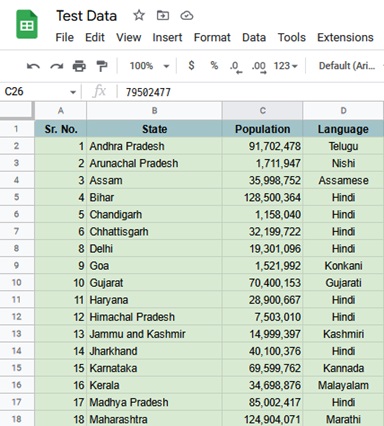
- Query - The query you want to run must be enclosed in quotation marks.
The query in this function is to import data given in columns B and D from the sheet1
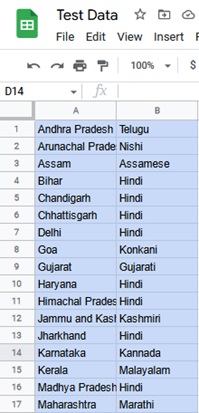
- Headers - This is an optional argument, which tells the function of how many header rows are in your data.
Clauses
There are many clauses in the query function. They are 1) Select, 2) Where, 3) Order By, 4) Limit, 5) Pivot, 6) Group By, 7) Label, 8) Offset, and 9) Options. We will discuss some of the major clauses which are very useful and widely used for data analysis.
Select – You can import all or any specific set of columns using this clause.
Select specific columns: =QUERY(Sheet1!A:D, "SELECT B, D", 1)
Select all columns: =QUERY(Sheet1!A:D, "SELECT *", 1)
Where – This clause is used to import any specific conditional data.
=QUERY(Sheet1!A:D, "SELECT * Where D Contains 'Hindi' ")
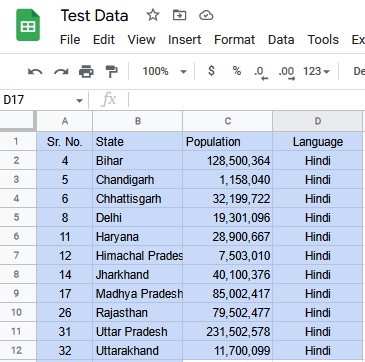
Order By – This statement is used to sort data in any specific order from the given data.
=QUERY(Sheet1!A:D, "SELECT * Order By C Desc ")
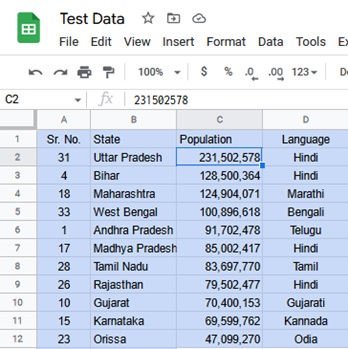
Limit – Useful to restrict the number of rows in the results returned from your data.
=QUERY(Sheet1!A:D, "SELECT * Order By C Desc Limit 5 ")
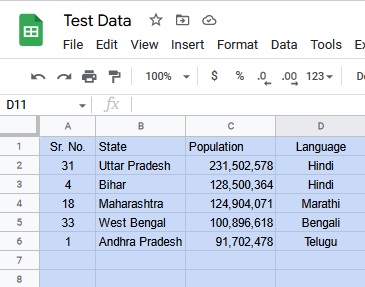
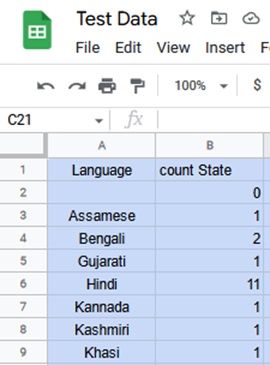
Group By – This is a very important clause to aggregate your data based on the findings.
=QUERY(Sheet1!A:D, "SELECT D, Count(B) Group By D ")
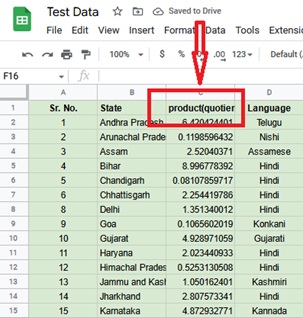
Label – You can also perform an arithmetic calculation using the query function and sometimes we have to change the heading of the obtained data accordingly. The label function is very useful in such situations.
=QUERY(Sheet1!A:D, "SELECT A, B, (C/1428293089)*100", 1)
Before
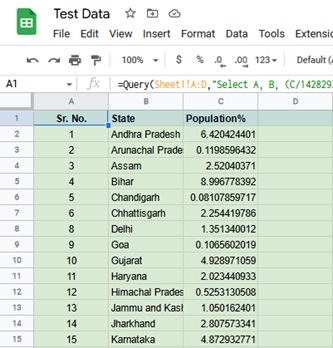
After using the Label clause
=Query(Sheet1!A:D,"Select A, B, (C/1428293089)*100 Label (C/1428293089)*100 'Population%'", 1)
At Staffcloud.net, we are well-versed in the power of Google Sheets and its various functions, including the Query function. We understand the importance of efficient data management and analysis in today's business landscape. That's why we leverage Google Sheets in many of our projects to effectively manage data and enhance productivity. By harnessing the capabilities of Google Sheets and functions like Query, we can streamline our operations, improve data reporting, and make informed decisions. Whether it's organizing information, creating insightful reports, or analyzing specific data sets, Staffcloud relies on Google Sheets to drive efficiency and deliver exceptional results.
We are here to provide expert guidance and support to help you optimize your business operations. Please feel free to contact us for any inquiries or assistance regarding Google Sheets, data management, or maximizing work efficiency.
Related services
- BPO Data Entry & Document Processing Data entry, OCR and the document work that keeps records usable. Explore service
- eCommerce Order & Fulfillment Operations From purchase order to tracking number, across every channel you sell on. Explore service
- BPO Outsourced Customer Support Services Multi-channel cover across marketplaces, helpdesks and inboxes. Explore service
More articles in Apps & Productivity
-
 8 July 2024
How to use Microsoft Teams?
Microsoft Teams is a platform that brings people, content, and tools together to improve teamwork. Launched in 2017 by M
-
 6 July 2023
Boost Employee Productivity with DeskTime: A Cloud-Based Tracking Solution
In recent years cloud-based monitoring apps are in high demand in the corporate world. Especially, for online desk jobs
-
 7 August 2025
How to Edit Product Descriptions and Images in Magento? A Complete Guide
Magento is a powerful open-source eCommerce platform. Used by a wide range of businesses to build, operate, and grow the