
Elevate Your Amazon Sales Strategy with Seller Central Coupons
4 min read StaffCloud
Introduction
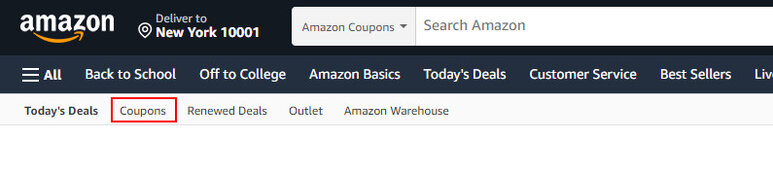
Discover the potential of Amazon's automatic merchandising with coupon discounts on individual items or product sets. Customers can easily discover these enticing Coupons through various options, including:
- Coupons are digital versions of discounts given to customers in physical stores or supermarkets.
- They provide money off or percentage discounts on eligible products.
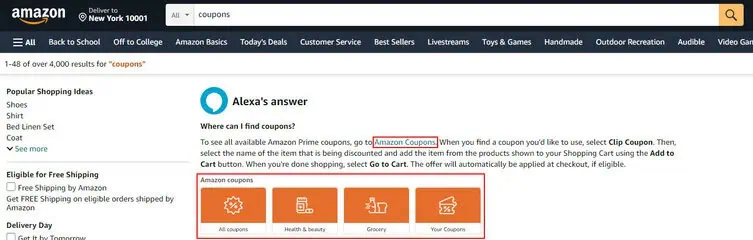
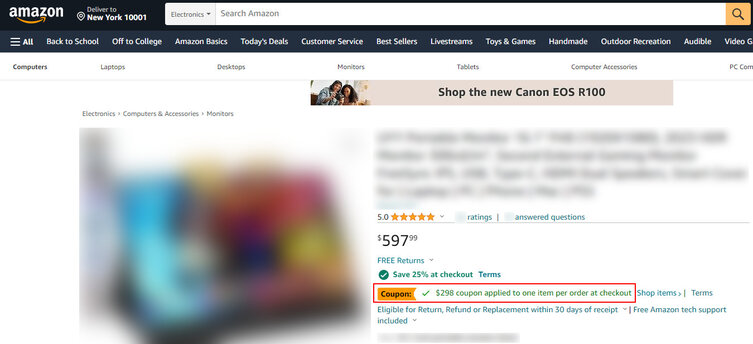
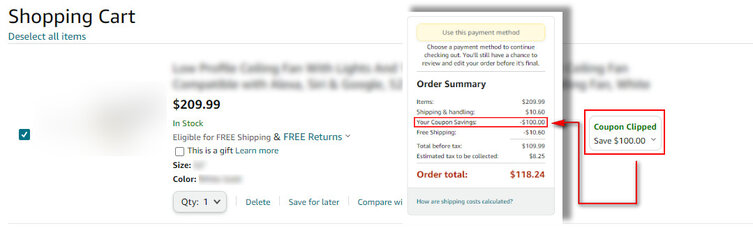
- On Amazon, customers can find coupons in search results, product detail pages, and shopping carts.
Perform a search for coupons using the search box on Amazon
Find Coupon on the product detail page (PDP)
Find Coupon on shopping cart
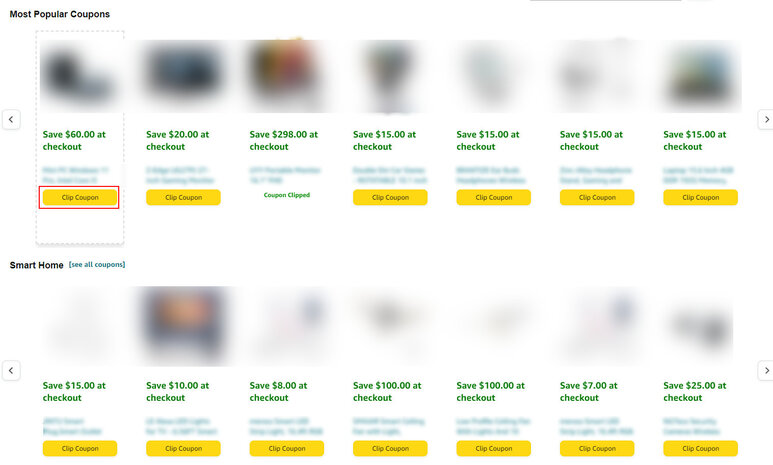
- Coupons have their own prominent landing page in the Amazon store.
- No sales history or customer reviews are required to create coupons, making them beneficial for new sellers and promoting newer products that may not be eligible for other promotions.
- Coupons can be created for both Fulfillment by Merchant (FBM) and Fulfillment by Amazon (FBA) offers.
- Sellers can choose the discount amount, budget, and offer duration (up to 90 days) when creating coupons.
- Customers can apply the coupon by clicking "Clip Coupon" below the product title and image, and the discount will be applied at checkout.
- Utilizing coupons can increase the chances of attracting more customers and ultimately boost sales on the Amazon platform.
Creating a Coupon on Amazon: A Step-by-Step Guide
To set up a coupon on Amazon and provide attractive discounts to customers, follow these steps:
Step 1: Access Seller Central Login to your Seller Central account.
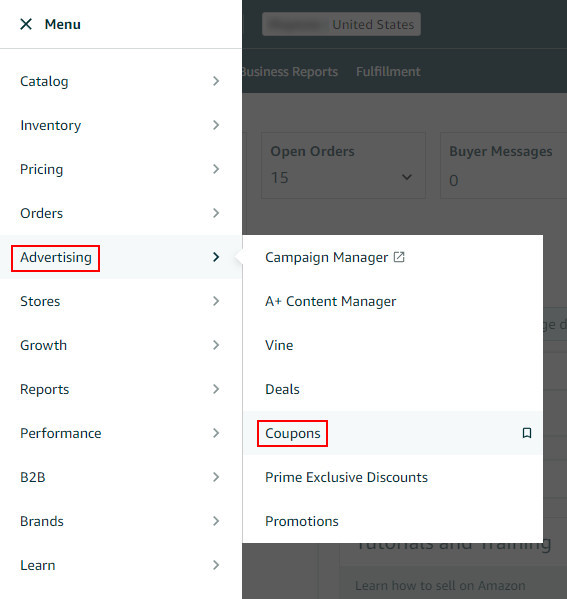
Step 2: Navigate to the Coupon Dashboard Locate the menu icon situated at the top left corner of Seller Central. Hover over the advertising section and choose "Coupons."
Step 3: Get Familiar with Coupon Information (If It's Your First Time) If you are setting up a coupon for the first time, you will land on a page offering more information about coupons. Review the details and proceed by clicking the "Create Your First Coupon" button.
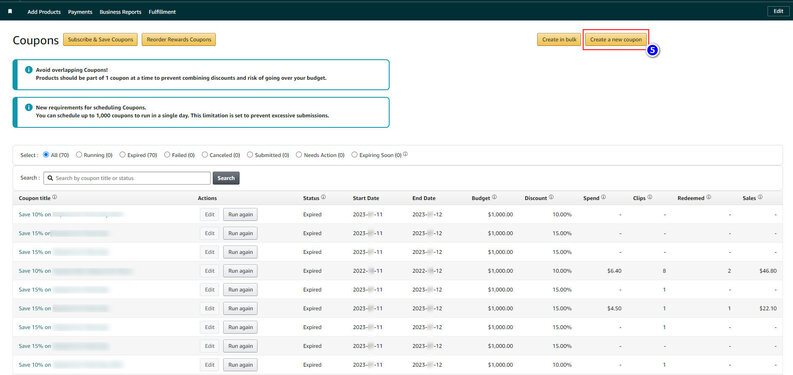
Step 4: Manage Your Coupons (For Existing Coupon Users) For those who have already set up coupons before, you will be directed to your coupons dashboard. Here, you can see all your submitted coupons and filter them by status. You may edit or deactivate coupons, but remember that changes cannot be made within approximately six hours of the coupon start time. This ensures the coupon's value to Amazon customers.
Step 5: Create Your Coupon To create a new coupon, click on the "Create a new coupon" button.
Step 6: Add Products to Your Coupon Find the product using its Stock Keeping Unit (SKU) or Amazon Standard Identification Number (ASIN). Click the Magnifying glass icon button and check the checkbox of the desired product. You can add up to 200 ASINs to your coupon. If adding ASINs individually, search by ASIN or product title to manage which products and variations appear on the coupon.
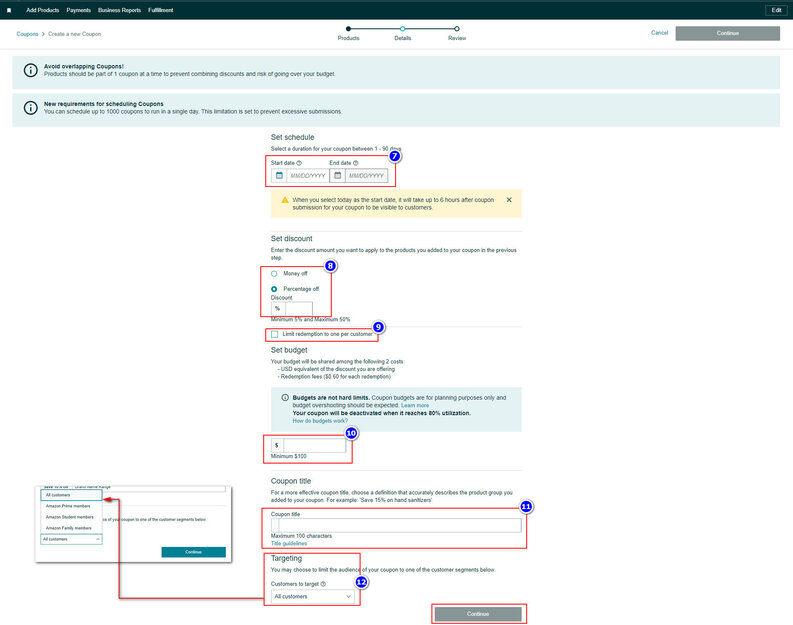
Step 7: Set Duration Choose the duration of the coupon. Keep in mind that all coupons expire after 90 days. For starters, a duration of two to three months is recommended.
Step 8: Choose Coupon Type and Discount Proceed to the next step and choose whether to offer a percentage or fixed amount discount. Enter the discount amount you wish to offer. For higher-priced items, a fixed amount coupon is recommended, as customers can quickly see their savings without calculating the discount. Regardless of the type, it is suggested to create a coupon with at least a 10 percent discount.
Step 9: Select Redemption Options Decide whether customers can redeem the coupon once or multiple times.
Step 10: Set Budget Enter your budget (which is not a hard limit) for planning purposes only.
Step 11: Craft Coupon Title Review the guidelines and create an appealing coupon title. This title will appear under the coupon image on the coupons homepage, and the first three words are automatically generated based on the discount. Let customers know which products the savings apply to.
Step 12: Targeting Select which Amazon customer types will be eligible to use your coupon. You can make it available to All Customers or restrict it to Amazon Prime, Amazon Student, or Amazon Family members.
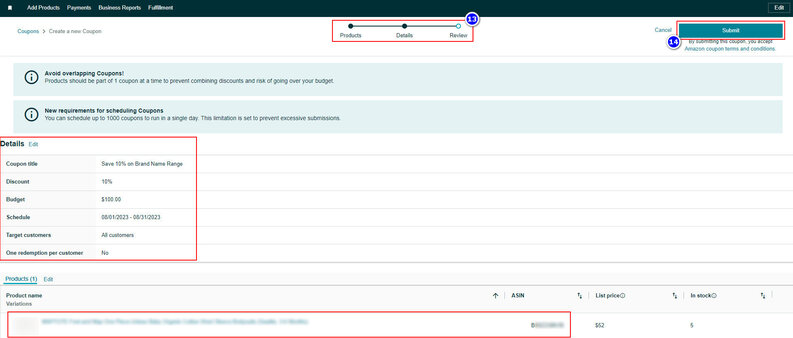
Step 13: Review Review all the details carefully, and if you spot any errors, use the numbered circles to navigate back and make necessary updates.
Step 14: Submit Your Coupon When you are satisfied with the details, click "Submit Coupon." If approved, customers will discover your coupon in search results, on product detail pages, and on the coupons homepage in the Amazon store.
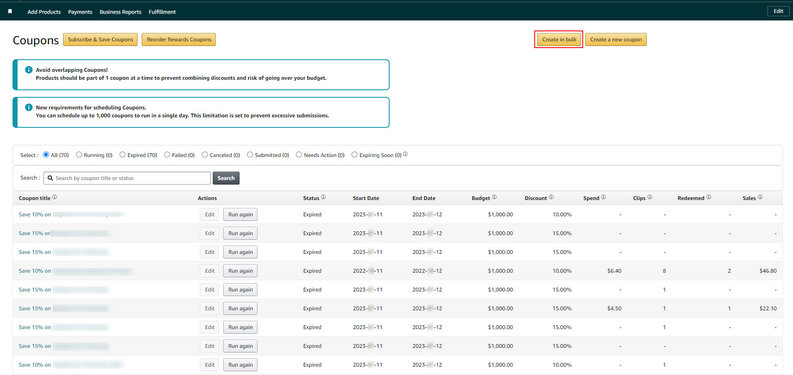
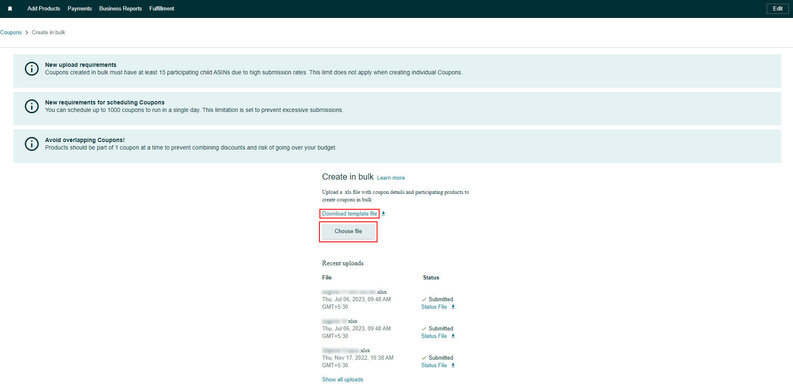
Create in bulk
If adding more than a few, use the "Create in bulk" option on your Coupons dashboard and upload a spreadsheet with the product information.
Fill all the required columns in the Excel template same as explained above for the online form
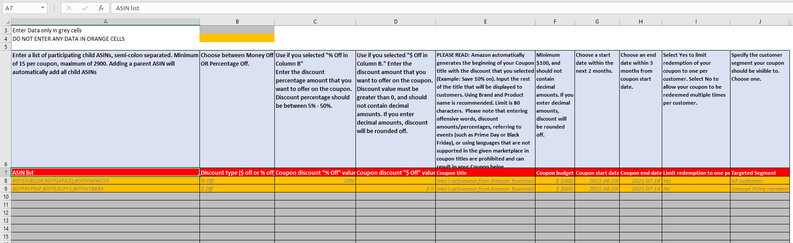
Review and Upload it once you're done.
Discover the unmatched assistance provided by StaffCloud.net to fulfill your backend and online retail requirements. Our proficient experts excel in a variety of crucial responsibilities, including data entry, inventory management, customer support, and various administrative tasks. Rely on us to enhance your business operations and guide you toward achieving success. Get in touch with StaffCloud today to experience the profound influence of a trustworthy partner.
Related services
- eCommerce Amazon Seller & Vendor Central Management Seller and Vendor Central run day to day — listings, content, ads, cases and claims. Explore service
- eCommerce Order & Fulfillment Operations From purchase order to tracking number, across every channel you sell on. Explore service
- BPO Data Entry & Document Processing Data entry, OCR and the document work that keeps records usable. Explore service
More articles in Amazon
-
 21 July 2025
How to Add ‘There Is a Newer Version of This Item’ Tag to your Amazon Listing?
If you’ve ever browsed Amazon, you might have come across a subtle yet powerful message above the product title that say
21 July 2025
How to Add ‘There Is a Newer Version of This Item’ Tag to your Amazon Listing?
If you’ve ever browsed Amazon, you might have come across a subtle yet powerful message above the product title that say
-
 21 May 2025
Amazon FBA vs. FBM: What’s the Difference and Which Fulfillment Method is Right for You?
Selling on Amazon presents a tremendous opportunity for business growth, but your success heavily depends on choosing th
21 May 2025
Amazon FBA vs. FBM: What’s the Difference and Which Fulfillment Method is Right for You?
Selling on Amazon presents a tremendous opportunity for business growth, but your success heavily depends on choosing th
-
 23 November 2024
How to use Automate Pricing Feature on Amazon Seller Central?
Automate Pricing is a powerful tool offered by Amazon Seller Central to help sellers dynamically adjust their prices in
23 November 2024
How to use Automate Pricing Feature on Amazon Seller Central?
Automate Pricing is a powerful tool offered by Amazon Seller Central to help sellers dynamically adjust their prices in